Title here
Summary here
You can access location history for yourself or any group member to view detailed statistics and travel data.
Once in the history screen, you have several controls to customize what you see. You can toggle the stats view to display a summary of data for the selected period, select a single date or date period to view more of your data, and if user has multiple devices, you can switch between them to see history specific to that device.
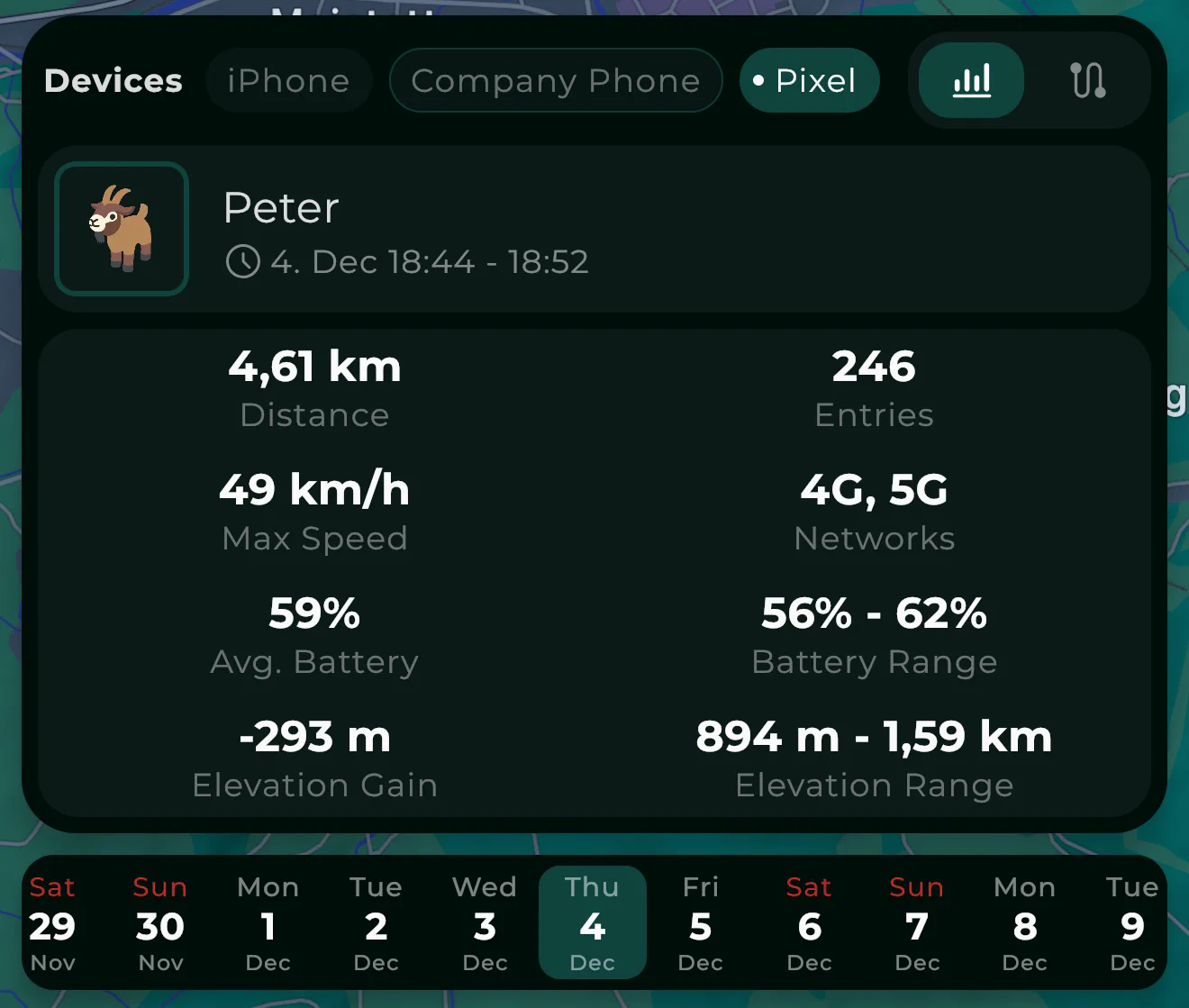
All the stats you see in the stats view are calculated for the entire selected period.
At the bottom of the screen is a calendar row for selecting dates. You can select a single date or a date period to view more of your data.
To view history for a single day, just tap the date in the calendar row.
To view history for a period of up to 15 days, long-tap on another date to define a range. This is very useful for reviewing vacations or longer trips.

To cancel the date period selection, long-tap on selected date or tap the counter next to the calendar row to clear the period selection.
Note: Date selection is a Premium feature. Free plan users view the entire location history (up to 100 points) at once.