Title here
Summary here
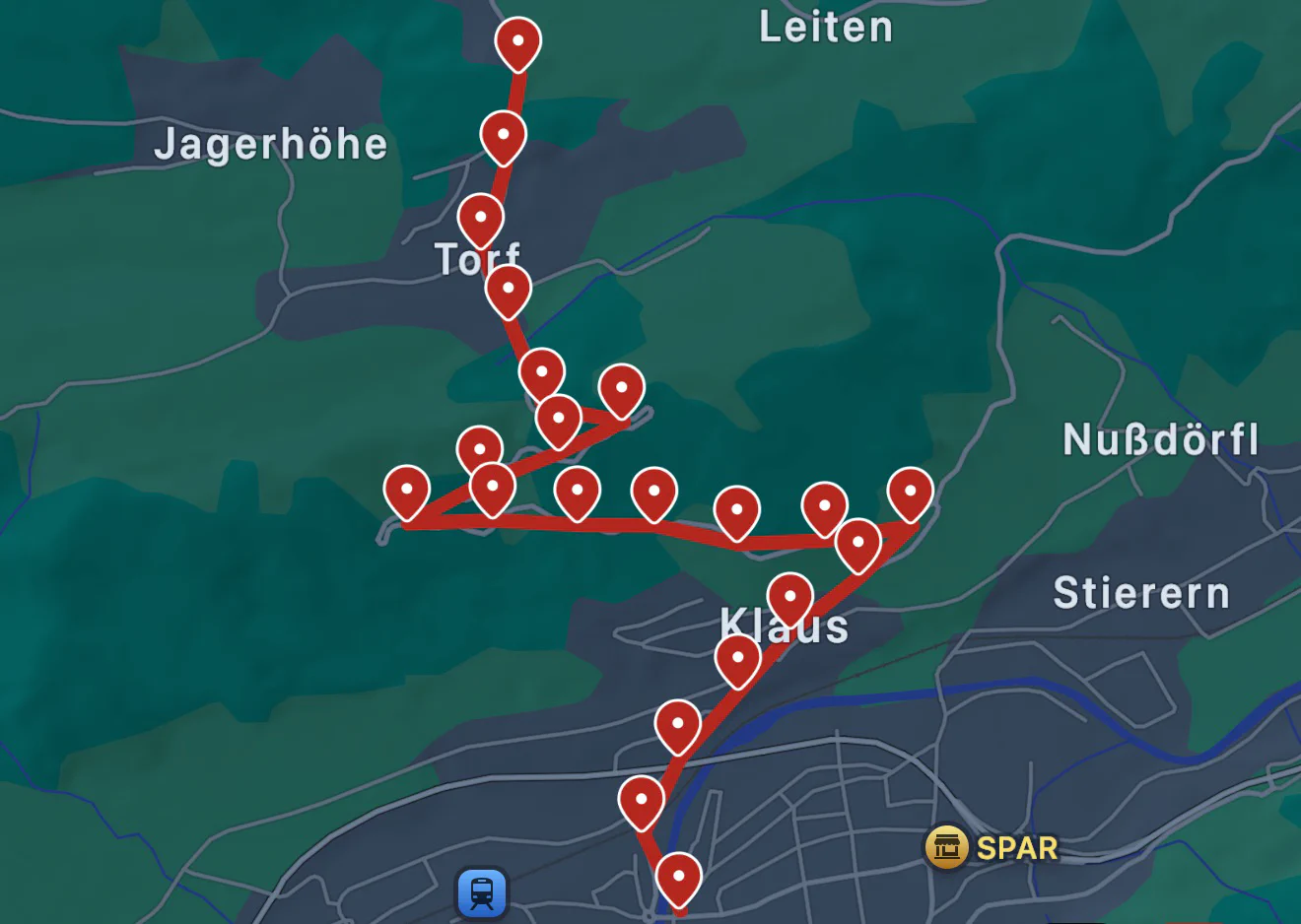
You may see markers on the map that look like concentrated circles. This indicates that there are multiple location updates in that specific area which have been grouped together. You can interact with these circles to see individual points.
If you tap on a grouped circle, you will have an option to expand it to see individual points within that group. This is useful if you want to see the exact path you took in that area or want to examine all metadata while being stationary.
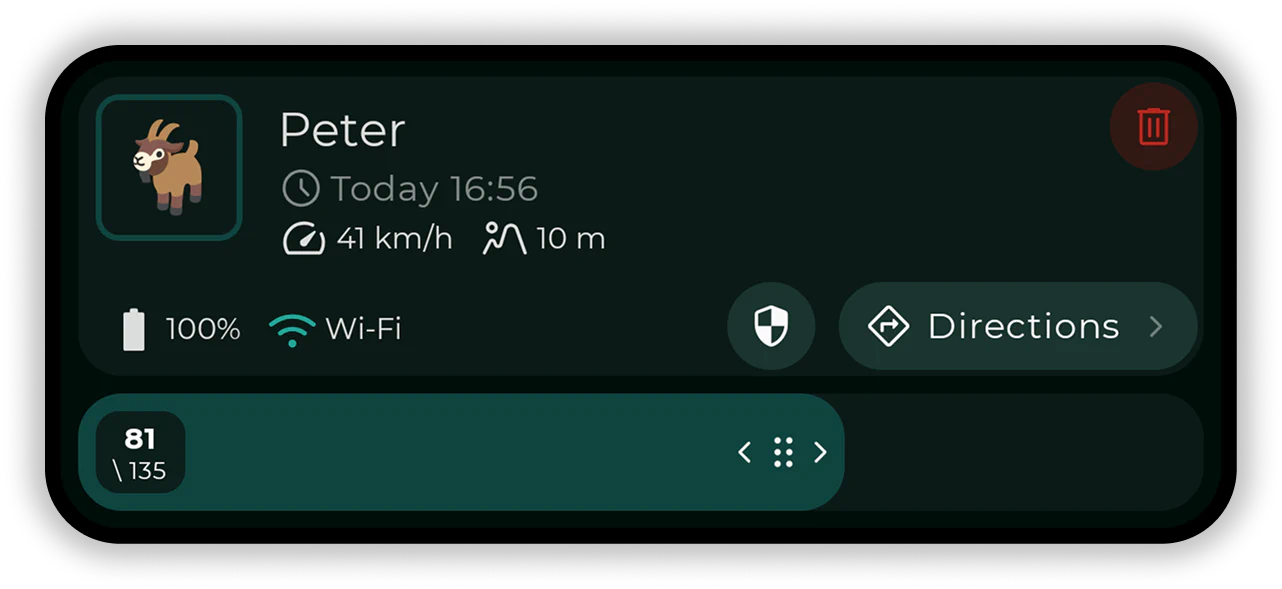
You can also tap on any other point on the map (including the grouped circles) to see detailed information about that point. When you do tap on a point, map view will switch to show you a those details and controls to navigate through the history.
You can continue tapping on different points, use a slider or left/right arrows to quickly navigate back and forth in time.
When a point is selected, you will also see all metadata for that point, including battery level, signal strength, speed, exact time of the update, elevation, network type, etc.
If you or some of your group members decides not to share specific data, then of course that data is not recordered and will not be available in the map view. To learn more about what can you share and what you can’t, read more about sharing options.
You can toggle several display options to customize the map view. Tap on the filter icon to adjust the following options: